
Cool Technologies
Cool Technologies
- Screen recording is becoming more in demand, particularly with Distance Learning or virtual instruction, or Flipped classrooms.
- The biggest issue is the question: What do I use?
- There are both free versions and paid versions, so here are some of the top screen recording and some training tutorials to go along with them.
- Internally, we have Teams available, and those recordings automatically get uploaded into Streams in Office 365, making it easy to share with students (Parents have to log in using the students' credentials to see Stream recordings).
- However, some users, depending on their comfort level, may just find it easier to use other screen recording platforms instead. Streams will allow you to still upload any videos to it manually if they go that route; it's just an extra step.
- Click to see some of the most popular options
Here are some screen recording options:
- Screencastify -
|
|
Learn how to use the free version of Screencastify to create your own screen recordings or screencasts. Screencastify is a Google Chrome Extension that makes... youtu.be |

Screen-o-Matic
|
|
Learn how to create your own screen recordings and screencasts by using a free tool called Screencast-o-Matic. Great for creating tutorials, this tool can al... youtu.be |

Loom Screencast Tool - (PAID Pro version is now free for teachers AND students FOR LIFE)
- Loom Screencast Tool - Screen Recording Software
- Has a simple Google Chrome Extension
|
|
Loom Screencast Tool - Screen Recording Software Learn how to use Loom to make your own screen recordings / screencasts for free. Loom can be used either as a Google Chrome extension or as software installe... youtu.be |

TheLernia - WhiteBoard Lessons
|
|
TheLearnia - Record Your Own Whiteboard Lessons Learn how to use TheLearnia to easily create "Whiteboard Lessons" on your computer and then share them with students, other teachers, and parents. You can re... youtu.be |

indows 10 Steps Recorder
|
|
How to Record Screen on Windows 10 (5 Methods That Work) To set up a screen capture, choose Sources > + > Window Capture > Create New. In the drop down list that appears, choose the window you want to record. This should place your window in the ‘preview’ panel. If it looks the way you want it to, click transition in the center of the screen. If it doesn’t, drag the red corners until the ... www.softwarehow.com |

Techsmith Snagit - Temporarily available for free
- In Office, the Microsoft Learning Tools is a set of features available in Word designed to help you improve reading skills no matter your age or ability.
- The idea with these tools is to remove distractions and offer proven techniques to improve reading fluency and comprehension. For example, using Learning Tools, you can add spacing to reduce visual crowding. You can change the color of the background to make it easier to see the letters. It's also possible to break down words into syllables and highlight part of the speech, and you can use the narration feature to hear the text aloud and see the words highlighted to follow along.
- In this Windows 10 guide, we'll walk you through the steps to get started with the Learning Tools available with Microsoft Word to improve your reading skills when using an Office 365 subscription or Office 2019.
Text to speech option using existing Office365 platforms –
àBelieve it or not, everyone already has this…… and its free
Try Immersive Reader. Its free in Office365 and already built in.
It supports
- OneNote -
- Word
- Outlook
- Edge
- MS Teams
And also has an app Office Lens for iOS
I list this under the “Cool technology” category you didn’t know you already had…. J
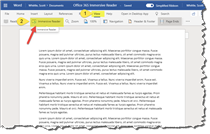
- OneNote introduction to immersive Reader - Learning Tools
- Learning Tools in Word - Learning Tools in Word
- Intro to using a screen reader - Screen reader support for Word
- Do things quickly with tell me - Word help & learning
- Keyboard shortcuts - Word help & learning
- Learning tools in Word - Use Immersive Reader in Word
- Intro to make documents accessible - Intro to making documents accessible
Learning Tools for OneNote requires a download- Learning Tools Setup
Learning Tolls for OneNote has the ability to be deployed by IT admins - MS Article Link
Learning Tools features available in Microsoft products
Office 365/Office suite –
- This is good for the occasional document needing converting, but not for daily lessons for teacher/student communication barriers with ESOL/ELL students. This is a LOT of overhead for a teacher trying to handle communication barriers with students needing the additional assistance of content provided in their primary language
- The translate feature is built into Word. It is not directly visible within O365 in the browser, but used within Office365 by opening any document from O365 and selecting “Edit in Word”. Has a 3-4 easy steps, but perfectly reasonable.
You can. Depends on the what and how. Here are some methods available to LCS Faculty just as a help FYI
Google translate (using the search page’s built-in translator box) can help somewhat with basic chunks of text for small quick snippets, but it has a max of 3900 character limit, so less than one page of text generally. Not really viable for more than a single sheet of text
To do more, it requires you open the Translate.google.com site which has some odd properties behaviors of what will do what and where
- Copied and pasted text, but still maxed at 5,000 characters, but now in rolling “chunks”.
- Websites URL’s can translate the full source text, but generally not the public comments associated in community responses
- Uploaded documents can be fully translated.
There are two additional options:
- Office 365/Office suite –
- This is good for the occasional document needing converted, but not for daily lessons for teacher/student communication barriers with ESOL/ELL students. This is a LOT of overhead for a teacher trying to handle communication barriers with students needing additional assistance of content provided in their primary language
- The translate feature is built into Word. It is not directly visible within O365 in the browser, but used within Office365 by opening any document from O365 and selecting “Edit in Word”. Has a 3-4 easy steps, but perfectly reasonable.
- Source Document in Office 365 – This example is a OneDrive doc in Chinese (PRC). Simply select “edit in Word” and it will launch locally.

- Source Document in Office 365 – This example is a OneDrive doc in Chinese (PRC). Simply select “edit in Word” and it will launch locally.
- Local Word file

- The whole document is sent to the Microsoft web translator (Can also handle URL’s like Google

- Schoolwires
- If a teacher needs content to be readily available for a student on an ongoing basis and doesn’t have the time to do the manual conversion process above for ESOL and ELL and sending of the translated documents, there are a couple ways to handle this
- They can make a specific page within their website and leverage the websites built-in text translator functionality by doing either of the following:
- Add an article library app and post the individual content as an article
- add a headlines and features and post an article with the text pasted
- Any content shown as text on the website can then be translated (For example this article list translated to Punjabi, Urdu or Japanese)


-

Scott Whittle
ave you ever wanted to get a typed transcript of what was said in a meeting, or broadcast? Well, now you can!!
What are automatic captions?
Automatic captions are machine transcriptions of the words heard in a YouTube video performed by Google software. While those transcriptions are almost never perfect, more and more, the accuracy seems to be improving. When it comes to transcribing videos for the purpose of making subtitles, automatic captions can mean fewer words that have to be typed by humans.
About DIYCaptions' Automatic Captions Clean-up Editor
This app is intended to make it easy to access the automatic captions that YouTube creates for videos and to manually correct any transcription errors so that the text can be used to create more professional-looking captions. For videos where the accuracy of the automatic captions is high, using automatic captions can significantly reduce the amount of time that it takes to type a transcript of a video's spoken content.
To use the tool, navigate in a separate tab to the YouTube video you want to get transcribed and click "Share"

Copy the shortened YT link and paste it back in the Auto-captions box and press "Go"

The user can then use the interface to play the video, listen to verify accuracy, make a correction, insert speaker shift breaks, skip to specific points forward or backward, and update the transcript on the fly before copying off to a separate file format.

To give it a spin, simply click the link: DIY Captions
Just want to get the text fast?? Try their Chrome extension - DIY Captions Chrome Launcher

Scott Whittle
whittles@leonschools.net
How to Make Windows Desktop Shortcut for Specific Browser
Posted on by Mitch Bartlett 12 Comments
So you have Microsoft Windows set to use Chrome as your default browser, but you want to use a desktop shortcut to open a specific site in IE. Or maybe another website icon that will only work in Firefox. Creating a shortcut to a web document won’t work. However, you can open a URL using a shortcut to a non-default browser using these steps:
- Right-click a blank area of the desktop and select “New” > “Shortcut“.
- For the location, type the path to the browser you wish to use followed by the URL you wish to open. For example:
- Chrome: “C:\Program Files (x86)\Google\Chrome\Application\chrome.exe” https://technipages.com
- IE: “C:\Program Files\Internet Explorer\iexplore.exe” https://technipages.com
- Firefox: “C:\Program Files (x86)\Mozilla Firefox\firefox.exe” https://technipages.com

- Provide the name for the shortcut. You will probably want to use the name of the website in most cases.
- Select “Next“.
- Select “Finish“.
Now you have a shortcut that will open the website in a specific web browser, no matter what the default browser is set to in Windows.
I have tested this thoroughly and it works in Windows 7 as well as Windows 10.
So you're looking at PDF products. The question you need to answer, is what are they trying to do? And do you want or need to spend $$$?
So let's get right to your next question.... The short answer is NO, the district doesn’t have any licenses for Adobe Acrobat for Teachers/Admins to use. Schools have to purchase individual seat licenses for that if they have to have Adobe Acrobat
However, depending on your answer to the question above depends on which option works best.
- Trying to edit a pdf but need it in Word first?
- Needing to make a fillable form?
- Required to encrypt the pdf with a password due to FERPA/HIPPA rules?
There are three options
 Option#1 – PDFCandy - PDF Candy Interfacehttps://pdfcandy.com/
- Handles - Basic conversion of word to PDF and PDF to word, passwords, editing text, removing specific pages, and lots of other functionality, etc.
- They can simply use PDF candy in ClassLink – its free and I pushed it out there for everyone out to their ClasLink. Just don’t use it to encrypt/password sensitive student FERPA or HIPPA data,
- Technically their privacy policy states all submitted data is deleted from their server that you send up within 1 hr. from upload, but we do not have an official security agreement so NO FERPA/HIPPA type data should be sent to PDF candy
PDF Candy Website Screenshot

- Option #2 – PDF Creator/PDF Architect –
- Available in SCCM. Free and does the functionality of Acrobat, but if they want it for password protection, it requires the user set up an encryption profile to do so, but allows users to password sensitive Student FERPA/HIPPA data without sending that data offsite to a 3rd
- Instructions on how to set up the Password Profile in PDF Creator to be able to set passwords on PDF's
- The only downside is being free, it LOVES to use the bottom right corner of your screen to show offers and upgrade ads and can get annoying sometimes.
- A little bit of a learning curve and not as clean and straightforward as Adobe Acrobat, but it’s got what it needs
PDF Architect & PDF Creator screen

- Option #3 – Adobe Acrobat Pro–
- Either Use a license you hold with an Academic Site license or buy a workstation seat license (around ~$80-90 dollars on avg for academic institutions @ CDW) Just don’t forget we are a tiered level purchaser so we get the maximum discount.
- Adobe Acrobat Pro 2017 - CDW Linkhttps://www.cdw.com/product/adobe-acrobat-pro-2017-media-and-documentation-set/4668017?pfm=srh $26.99 (1/11/19) TLP Program
- Adobe Acrobat Pro DC 2015 - CDW Link 26.99 (7/23/19) TLP Program
- Personally, I prefer the Pro version and dislike the DC version just because I don’t like monthly or annual subscriptions( Vampire tech software……) and the DC cloud layout is just weird to me.
- Either Use a license you hold with an Academic Site license or buy a workstation seat license (around ~$80-90 dollars on avg for academic institutions @ CDW) Just don’t forget we are a tiered level purchaser so we get the maximum discount.
Acrobat XI Pro screen

Scott Whittle